Photo Projector Apps: Modern Tools for Traditional Artists
See Da Vinci Eye in action in the video below.
If you’ve ever looked at a traditional art projector and wished for something more portable, you’re not alone. Those bulky machines take up serious studio space. Fortunately, smartphone technology has caught up to the needs of working artists, and now a photo projector app can turn your phone into a fully functional projection tool.
The magic here is augmented reality technology. Instead of a physical projector beaming light onto your canvas, your phone’s camera overlays your reference image directly onto your drawing surface in real time. You look at your screen and see both your paper and the image you’re tracing, perfectly aligned.
How a Photo Projector App Works
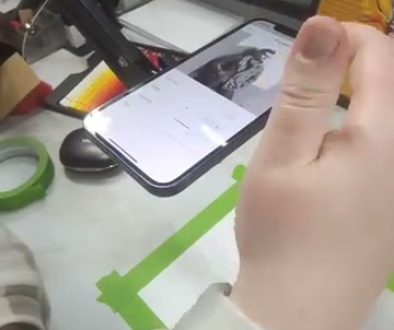
The core function is simpler than you might think. Your phone needs to be positioned above your drawing surface, camera facing down. The app then layers your reference photo over the live camera feed, creating that see-through effect.

You’ll need to prop your phone up somehow. A tall glass or spray can works in a pinch, though dedicated phone stands give you more stability. The important thing is keeping your phone steady so the alignment doesn’t shift while you’re working.
Once your phone is positioned, you’ll see your blank paper on screen with your reference image ghosted over it. You can adjust the size and position until everything lines up exactly where you want it. Then you’re ready to start drawing.
This replicates what expensive art projectors have done for decades. The difference is you’ve already got the hardware in your pocket.
Setting Up Your Drawing Space
The setup process takes about a minute once you’ve done it a few times. Open your photo projector app and select the image you want to draw. Most apps let you pull from your photo library or take a fresh picture.

Position your phone so the camera has a clear view of your entire drawing surface. You don’t want the phone too close or too far, just at a height where the camera captures your whole working area with a little room to spare.
Da Vinci Eye shows you the live camera view with your reference image overlaid. You can drag the image around with your finger, resize it, and rotate it until it’s positioned exactly where you need it. Lock the position once you’re happy with the placement.
The opacity slider is your friend here. If the reference image is too strong, you won’t be able to see your actual pencil marks clearly. If it’s too faint, you’ll lose track of the reference. Play with it until you find the sweet spot for your lighting conditions.
Zooming In for Detail Work
This is where photo projector apps really shine compared to traditional projectors. When you’re working on a complex area like facial features or intricate patterns, you can zoom way in on just that section of your reference.

Think of it like using a magnifying glass, except you’re magnifying the reference image instead of your drawing. You can focus on getting a small area exactly right, then zoom back out to check your overall proportions.
The zoom function in Da Vinci Eye works with a simple pinch gesture, just like zooming a photo. You’re still seeing the live camera feed of your drawing surface, but now with an enlarged portion of your reference overlaid on it.
This is especially helpful when you’re learning to observe accurately. You can zoom in to see exactly how an eye is shaped or how shadow edges interact, then apply what you’re seeing directly to your drawing.
Using This for Different Surfaces
Paper and sketchbooks are the obvious choice, but photo projector apps work on any surface your phone camera can see. Canvas, wood panels, even walls if you’re feeling ambitious.

For murals or larger projects, you might need a two-device setup. One phone acts as the camera viewing your work surface, while a tablet serves as your drawing device that you actually look at. This gives you more screen real estate and lets you step back from your work without losing the view.
I’ve seen artists use this setup for window painting during holidays. They position the camera phone to view the window from outside, then use a tablet to see the overlay while painting. The app shows the same image on both devices simultaneously.
Just make sure whatever surface you’re working on has enough contrast with your drawing medium. If you’re sketching with light pencil on white paper, you’ll need decent lighting so the camera can pick up your marks.
Understanding Augmented Reality vs. Traditional Projection
A traditional art projector shoots light through a transparency or reflects an image onto your surface. The projection is actually there in physical space. Anyone standing next to you can see it.
A photo projector app creates the overlay digitally. The image only exists on your screen. Your paper stays blank until you draw on it, and someone watching you work would just see you glancing at your phone while drawing.
This difference matters for a few reasons. First, you can work in any lighting condition. Bright sunlight that would wash out a traditional projector doesn’t affect your phone screen. Second, you’re not tethered to an electrical outlet or limited by projector placement.
The tradeoff is that you’re looking at a screen instead of directly at your work. There’s a small adjustment period where your hand-eye coordination adapts to this setup. Most artists get comfortable with it within the first session.
Common Setup Mistakes to Avoid
The biggest issue beginners run into is phone stability. If your phone shifts even slightly, your carefully aligned reference image moves and you’ll need to reposition everything. Use something sturdy to prop up your phone or invest in a proper stand.
Lighting causes problems too. If your drawing surface is poorly lit, the camera can’t see your marks clearly. You need enough light that the camera shows a crisp view of your paper, but not so much that there’s glare on your phone screen.
Don’t forget to lock your screen rotation and turn off notifications. Nothing breaks your focus like your phone suddenly rotating the image or a notification banner covering part of your reference. Set up your phone properly before you start drawing.
Watch your battery life. These apps use your camera continuously, which drains power faster than normal phone use. If you’re planning a long drawing session, start with a full charge or keep a charger handy.
Building Skills While Using Reference Tools
Here’s the thing about using any reference tool, whether it’s a photo projector app or a traditional grid method. The tool helps you understand proportions and relationships, but you’re still doing the actual drawing.
Your hand is still making every mark. Your eye is still observing shapes, values, and edges. You’re building the same fundamental skills that all drawing requires. The app just gives you a way to check your accuracy as you go.
Try this approach: set up your reference, draw one section while looking at the overlay, then hide the reference and try the next section from observation alone. Compare what you drew to the reference. This back and forth teaches you to see more accurately over time.
The portability factor matters more than you might think. Because Da Vinci Eye works anywhere your phone works, you can practice in different locations and lighting conditions. Sketch at a café, draw outside, work in different rooms. That variety helps you develop flexible skills.
Start drawing with Da Vinci Eye