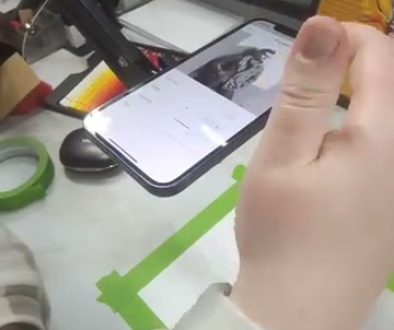
How a Painting Camera Can Transform Your Art Workflow
See Da Vinci Eye in action in the video below.
If you’ve ever wished you could see your reference photo overlaid directly onto your canvas while you work, you’re not alone. Artists have been searching for better ways to transfer images for centuries, from grid methods to projectors that need dark rooms and complicated setups.
A painting camera solves this by using your phone’s camera and augmented reality technology to show your reference image superimposed on your actual drawing surface in real time. You see both your work and the reference together, letting you check proportions and placement without constantly looking back and forth.
What Makes a Painting Camera Different from Regular Reference Photos
The traditional approach means taping a reference photo nearby and glancing at it constantly. Your eyes travel back and forth, trying to mentally calculate how that curve in the photo translates to the size of your canvas.

A painting camera changes this completely. The technology overlays your reference directly onto your drawing surface through your phone’s screen, scaled and positioned exactly where you need it.
You’re looking at one view instead of two separate sources. Your reference sits right on top of your canvas, adjusted to match your working size. This means you can focus on the actual act of drawing instead of mental math about proportions.
The augmented reality aspect is what makes this possible. Your phone tracks your canvas position and keeps the reference image stable and aligned, even as you move around or adjust your view.
How AR Technology Powers Modern Painting Tools
The tech behind this might sound complicated, but it works pretty intuitively once you understand the basics. Your phone’s camera captures a live view of your canvas or paper.

The app then layers your chosen reference image over that live feed. You control the opacity, size, and position of the overlay. The AR tracking ensures everything stays locked in place relative to your drawing surface.
This means you can zoom into specific areas for detail work without losing your place. The app remembers where you positioned the reference, so you can zoom back out and the alignment stays perfect.
Da Vinci Eye takes this further by letting you use two devices together. One device acts as your camera, mounted above your work. The other becomes your drawing screen, showing the overlay at a comfortable viewing angle.
Setting Up Your Phone as a Camera Mount for Drawing
The physical setup matters just as much as the software. You need your phone positioned so the camera has a clear view of your entire drawing surface.

A basic selfie stick or phone holder works to start. Mount your phone so it points straight down at your paper or canvas. The camera needs to see the full area where you’ll be working.
Keep the phone steady. Even small movements can throw off the AR tracking. A flexible tripod with a phone clamp gives you more stability than handheld options.
For larger projects, you might want to elevate the phone higher to capture more surface area. Some artists use extension poles or ceiling mounts for big canvases and murals.
Working with the Overlay: Opacity and Position Control
Once your camera is set up and you’ve loaded your reference image, you’ll adjust how the overlay appears. Start by scaling the reference to match your intended drawing size.

Most painting camera apps let you pinch to resize and drag to reposition the overlay. Take time getting this right before you start drawing. The reference should line up with where you want the final image to sit on your canvas.
Opacity control is huge here. You need to see your reference clearly enough to follow it, but also see your actual marks on the paper. Start with lower opacity and adjust up as needed.
Lock the position once you’ve got everything aligned. This prevents accidental shifting while you work. You can always unlock and readjust if you need to move things around.
Using Two Devices for Larger Projects
The two device setup opens up possibilities for bigger work. Your primary phone acts as the camera, mounted high above your canvas with a full view of the working area.
Your second device, whether that’s a tablet or another phone, becomes your drawing screen. Both devices connect through the app and show the same overlay information.
This setup works brilliantly for murals and window paintings. You can have the camera device mounted at a distance to capture the full wall, while you hold the drawing device comfortably at eye level as you paint.
The drawing device mirrors what the camera sees. You control the zoom, position, and opacity from whichever device feels more convenient. Both stay synced automatically.
Zooming into Details Without Losing Your Place
One of the best features of camera-based painting tools is dynamic zooming. You’re working on an eye and need to see the iris detail more clearly. Just pinch to zoom on your screen.
The app maintains your reference alignment even when zoomed. You can focus on tiny details, then zoom back out to check overall proportions. The overlay stays exactly where you positioned it.
This beats printed references by miles. A printed photo has fixed detail. If you need to see something closer, you’re squinting or getting a magnifying glass. With a painting camera, it’s just a finger gesture.
Try zooming in sections as you work through different areas of your drawing. Complete one detailed section, zoom out to check placement, then zoom into the next area. This methodical approach keeps your proportions consistent across the whole piece.
Common Setup Mistakes and How to Fix Them
The most frequent issue is camera angle problems. If your phone isn’t parallel to your canvas, the reference will look distorted. The image might appear stretched or compressed in one direction.
Fix this by checking that your camera points straight down or straight at your surface, not at an angle. Use a level app if you need to verify the alignment.
Lighting causes trouble too. Strong shadows or glare on your canvas make it harder to see the overlay clearly. Work in even, diffused light when possible. Avoid direct sunlight hitting your paper.
If your overlay keeps drifting or won’t stay locked, your AR tracking might be struggling. Make sure your canvas has enough visual detail for the camera to recognize. Plain white paper in dim light can confuse the tracking. Tap in the corner with a marker or place a small piece of tape as a tracking reference.
Battery life becomes a consideration for longer sessions. Your phone is running the camera, processing AR, and keeping the screen on constantly. Keep a charger nearby or use a power bank attached to your setup.
Choosing Between Camera Apps and Traditional Methods
Projectors still have their place. If you’re working on huge murals in spaces where you can control the lighting, a projector might make sense. But they need darkness, power outlets, and specific throw distances.
A painting camera works anywhere. Outdoors, in bright studios, in spaces where you can’t dim the lights. Your phone and the app are all you need.
Grid methods teach you to see proportions, and that’s valuable. But they’re time intensive on every single drawing. A camera-based approach lets you practice the actual drawing and painting techniques more and spend less time on initial layout.
The real advantage is flexibility. You can adjust your reference size instantly, try different compositions, or change which part of the image you’re focusing on. Traditional transfer methods lock you into decisions you made at the start.
Building Skills While Using Camera Assistance
Some people worry that using tools means you’re not really learning. That’s backwards thinking. Tools help you understand what you’re looking at.
When you overlay a reference and see exactly how that curve relates to your marks, you’re training your eye. You’re learning to see angles, proportions, and spatial relationships more accurately.
Over time, you’ll notice you need the overlay less for basic shapes. Your hand starts to understand the gestures. Your eye gets better at judging distances and angles.
The painting camera becomes a teacher, not a crutch. You’re getting immediate feedback about whether your marks match what you’re trying to achieve. That feedback loop is how skills develop.
Keep challenging yourself. Start with the overlay at higher opacity, then reduce it as you get more confident with each piece. Use it for initial proportions, then turn it off for details and personal touches.
Start drawing with Da Vinci Eye