Light Table Drawing: Why Artists Are Switching to AR
See Da Vinci Eye in action in the video below.
If you’ve ever hunched over a light table for hours, squinting at your reference photo while trying to transfer proportions to paper, you know the struggle. Light tables have been a studio staple for decades, helping artists trace and transfer images with backlit precision. But in 2026, more and more artists are swapping their bulky light table setups for something that fits in their pocket.
The shift isn’t just about convenience. It’s about how augmented reality tools let you work more naturally, see your reference and drawing surface at the same time, and skip the awkward positioning that comes with traditional light table drawing. Let’s look at why this change is happening and what it means for your workflow.
What Light Table Drawing Has Always Required
Traditional light table work means setting up a dedicated workspace. You need the table itself, which takes up desk space even when you’re not using it. You need to tape down your reference image, position your drawing paper on top, and work in a somewhat fixed position.

The backlit surface lets you see through your paper to trace the image underneath. That’s useful for transferring sketches, studying proportions, or creating clean line art from rough drafts.
But there’s a physical limitation. You’re working flat, often leaning over the table. If you want to adjust the size of your reference, you need to print a new copy or use a photocopier. Want to flip or rotate the image? More printing, more setup.
Why AR Projection Changes the Light Table Workflow
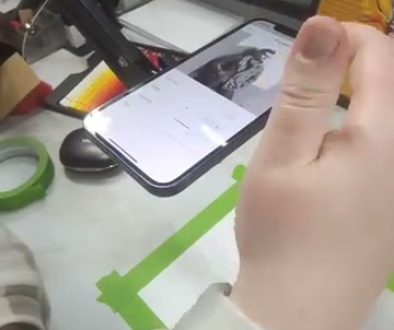
Augmented reality apps like Da Vinci Eye work differently. Instead of placing your reference image under your paper, you mount your phone above your drawing surface. The app uses your camera to overlay the reference image directly onto what you’re drawing.

You see both at once. Your actual paper and the projected reference exist in the same visual space. This means you’re not squinting through layers of paper or dealing with backlight glare.
The real advantage shows up when you need to adjust things. You can resize the reference with a pinch gesture, reposition it instantly, or change the opacity so you can see your own marks more clearly as you work. No reprinting, no tape, no repositioning heavy equipment.
How to Set Up Phone-Based Reference Projection
Setting this up takes about two minutes. You need a phone stand or mount that positions your phone above your drawing surface. rigid phone mounts work well because you can adjust the angle and height easily.

Open Da Vinci Eye and import your reference photo. Position your phone so the camera has a clear view of your paper. The app will overlay the reference image onto your drawing surface through the screen.
Adjust the size and position until the reference matches the dimensions you want for your drawing. You can scale it larger or smaller than the original photo, which gives you more flexibility than printing would. Once it’s positioned, you’re ready to start drawing.
The app lets you adjust opacity as you work. Start with higher opacity when you’re mapping out basic shapes and proportions. Lower the opacity as you add details, so you can see your own lines more clearly without the reference overwhelming them.
What This Means for Different Drawing Styles
Portrait artists benefit from being able to scale references to match their preferred working size. If you normally work on 11×14 paper but your reference photo is smaller, you can project it at the exact size you need without losing detail quality.

Detailed illustration work becomes easier when you can toggle the reference on and off. Check proportions, hide the overlay, draw from observation, then bring it back to verify accuracy. This back and forth helps you develop your eye while still having a guide available.
For studying master works or analyzing compositions, projection lets you overlay famous paintings or drawings onto your paper at any size. You can trace the gesture lines to understand how an artist constructed a pose, then practice the same pose from a different reference to apply what you learned.
The Learning Benefits Traditional Light Tables Can’t Offer
Light tables help you transfer images, but they don’t help you learn to see proportions independently. Because you’re always looking through paper at a fixed reference, you’re training yourself to copy what’s directly underneath.
AR projection tools let you practice with adjustable support. Start a drawing session with higher opacity to map out the basic structure. Then lower the opacity significantly and try to complete sections from observation. Bring it back up to check your accuracy.
This adjustable approach builds your observational skills faster. You’re not dependent on seeing the reference at full strength the entire time. You learn to trust your eye, then verify, then trust a little more.
The ability to study shapes and shadows becomes clearer when you can see your reference and your marks simultaneously. You notice where your proportions drift off, where you’re adding details that aren’t in the reference, and where your personal style naturally emerges.
Common Setup Mistakes That Mess Up Your Projection
Unstable phone mounts create frustration fast. If your phone shifts even slightly, the entire projection moves out of alignment. Invest in a mount that locks into position rather than one that drifts over time.
Poor lighting on your drawing surface makes it hard to see what you’ve actually drawn. The phone screen is bright, but your paper needs good light too. Position a desk lamp to illuminate your paper without creating glare on the phone screen.
Starting with opacity too low defeats the purpose of having a reference. If you can barely see the projection, you’ll struggle to map proportions accurately. Begin with higher opacity, then reduce it as your drawing develops and you need to see your own lines more clearly.
Working too close to your phone creates a narrow field of view. Mount your phone high enough that the camera can see your entire drawing surface. This prevents you from having to constantly adjust position as you work across different areas of your paper.
What You Actually Need to Switch From Light Table to AR
The physical requirements are minimal. A phone mount that positions your device above your work surface covers the hardware. Sturdy, rigid phone stands work best — avoid rigid phone or flexible stands, which wobble and shift mid-session.
Da Vinci Eye handles the software side. The app creates the overlay effect, lets you adjust size and opacity, and keeps the reference stable as you draw. You can work with photos from your camera roll or take new reference photos directly in the app.
Your existing drawing supplies stay the same. Pencils, paper, erasers, whatever medium you normally use. The AR projection doesn’t require special materials or surfaces. Draw on sketch paper, Bristol board, toned paper, whatever you prefer.
The workspace flexibility is where this setup really differs from light tables. You can work at your desk, at a drafting table, even outdoors in good lighting. The setup moves with you rather than requiring a dedicated permanent spot.
Start drawing with Da Vinci Eye