AR Art Projector Technology: How It Works Behind the Scenes
See Da Vinci Eye in action in the video below.
If you’ve ever wondered how your phone can turn into an AR art projector, you’re not alone. The technology that lets you overlay reference images onto your drawing surface feels almost magical, but there’s real computer vision science working behind the scenes.
Understanding how AR art projector technology actually functions can help you use these tools more effectively. Whether you’re sketching portraits, practicing proportions, or working on complex compositions, knowing what’s happening under the hood makes you a better artist.
What Makes an AR Art Projector Different from Traditional Projection
Traditional projectors beam light onto your canvas, which means you need a dark room and specific distance from your surface. An AR art projector works completely differently.

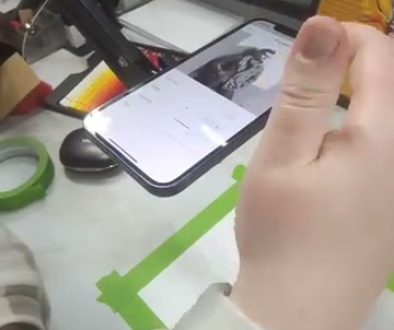
Your phone’s camera captures a live view of your drawing surface. The app then processes this video feed in real time and overlays your reference image directly onto what you’re seeing through the screen. It’s like looking through a window where reality and your reference blend together.
This approach has a huge advantage. You can work in normal lighting conditions, move your phone closer or farther away, and even adjust the opacity of your reference on the fly. No bulky equipment, no darkened rooms, just your phone and your drawing materials.
The Computer Vision Technology That Tracks Your Canvas
Here’s where things get interesting. For an AR art projector to work properly, it needs to understand where your paper or canvas sits in 3D space.

The app uses your phone’s camera to identify and track your drawing surface. Modern smartphones have impressive processing power that can analyze the video feed dozens of times per second, looking for edges, corners, and distinctive features.
When you move your phone or shift your paper slightly, the computer vision algorithms compensate instantly. The reference image stays locked to your canvas position rather than drifting across the screen. This tracking technology is what makes the experience feel stable and usable.
Da Vinci Eye can even recognize when you’ve placed markers or reference points on your paper. This creates more accurate tracking for detailed work where precision really matters.
How Image Overlay and Opacity Control Work
Once your phone knows where your canvas is, the next step is overlaying your reference image in a way that’s actually helpful for drawing.

The app takes your chosen reference photo and maps it onto the detected canvas area. You’re essentially seeing two layers at once: the real-time camera view of your actual drawing and the semi-transparent reference floating above it.
Opacity control is critical here. At 100% opacity, you’d only see your reference and not your actual pencil marks. At 0%, you’d just see your drawing with no guidance. The sweet spot is usually somewhere in between, where you can see both clearly enough to make informed marks.
Da Vinci Eye includes a strobe feature that flashes the overlay on and off automatically. This lets you quickly compare your work to the reference without manually adjusting opacity sliders, which is especially useful when you’re checking values and proportions.
Real-Time Video Processing and Performance
Running an AR art projector requires your phone to do a lot of heavy lifting simultaneously. It’s capturing video, running computer vision algorithms, rendering overlays, and displaying everything with minimal lag.

Modern phones handle this through a combination of powerful processors and optimized software. The GPU (graphics processing unit) handles the video rendering and overlay composition, while the CPU manages the computer vision calculations and app logic.
This is why AR art projector apps work better on newer phones. It’s not about camera quality alone, it’s about processing power. The app needs to maintain smooth frame rates while juggling all these tasks, or the experience becomes frustrating and unusable.
Battery consumption is another consideration. All this real-time processing drains power faster than casual phone use. Most artists working with AR projection keep their phones plugged in during longer drawing sessions.
Screen Brightness and Viewing Angle Challenges
One technical challenge that’s easy to overlook is how you actually hold and view your phone while drawing.
Your phone screen needs to be positioned so you can see it clearly while your hand moves across the drawing surface. This usually means mounting your phone on a stand, holding it with one hand while drawing with the other, or using a phone holder that positions it above your work.
Screen brightness matters too. In bright environments, you might struggle to see the overlay clearly even at full brightness. In dimmer settings, the screen can feel too bright and cause eye strain. Many artists adjust their workspace lighting to find a balance.
Da Vinci Eye and similar AR art projector apps work best when your phone is positioned relatively perpendicular to your drawing surface. Extreme angles can affect how accurately the computer vision tracks your canvas and how naturally the overlay appears.
Understanding Resolution and Reference Image Quality
The quality of your reference image directly impacts what you see through your AR art projector. A low-resolution photo will look pixelated when enlarged, making it harder to see fine details.
Your phone screen has a fixed resolution, typically between 1080p and 4K depending on your device. When you zoom in on your reference within the app, you’re limited by both the reference image quality and your screen’s pixel density.
This means starting with high-quality reference photos matters. If you’re photographing subjects to draw later, use your phone’s highest quality camera settings. For images from other sources, look for the largest file sizes available.
The good news is that modern phone screens have excellent pixel density. Even at typical drawing distances, the overlay appears smooth and detailed enough for most art projects. You’ll see individual brush hairs in a reference photo or the texture of fabric with surprising clarity.
Common Technical Issues and How to Work Around Them
Even with solid technology, AR art projector apps sometimes hit snags. Knowing what to expect helps you troubleshoot quickly and get back to drawing.
Tracking loss happens when the app can’t clearly identify your canvas, usually because of poor lighting, reflective surfaces, or too much movement. If your overlay starts drifting, pause and let the computer vision reacquire your drawing surface. Adding reference markers to your canvas corners can help with persistent tracking issues.
Screen glare makes it hard to see your overlay, especially under direct lighting. Adjusting your position relative to light sources usually fixes this. Some artists use matte screen protectors to reduce reflections.
Performance lag typically means your phone is working too hard. Close other apps, reduce the reference image resolution if possible, or give your device a moment to cool down if it’s gotten hot from extended use.
If your overlay appears distorted, check that your phone is relatively level with your canvas. The computer vision works best with straightforward angles rather than looking at your paper from extreme perspectives.
Start drawing with Da Vinci Eye