Da Vinci Eye: How AR Projection Changed Drawing Forever
See Da Vinci Eye in action in the video below.
If you’ve ever wondered how some artists get proportions right so quickly, they may be using an augmented reality drawing tool. Instead of guessing where everything should go, the app uses your phone’s camera to show your reference image over your paper or canvas. You still do the drawing by hand, but the overlay gives you a guide so you can place lines, shapes, and details more accurately from the start.
AR projection drawing changes the learning curve completely. Instead of spending hours measuring and remeasuring, you’re training your eye to see proportions accurately while actually completing drawings you’re proud of. Since Da Vinci Eye launched in 2016, we’ve watched thousands of artists use this approach to finally break through their frustration and start making real progress.
How AR Projection Drawing Actually Works
Traditional drawing methods ask you to constantly look back and forth between your reference and your paper, mentally calculating proportions and distances. Your brain has to do a lot of translation work, which is where mistakes creep in.

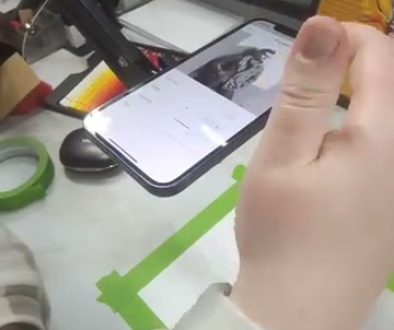
Augmented reality projection puts the reference image right where you need it. You hold your phone over your drawing surface, and the camera shows you both your paper and your reference photo overlaid on top of each other. You can see exactly where the eyes should sit, how wide the nose should be, where the hairline starts.
The really useful part is the AR anchoring technology. Once you’ve positioned your reference image, it stays locked in place even when your phone moves slightly. You can lift your phone to check your progress, set it back down, and everything lines up exactly where it was before.
What You Can Actually Learn from AR Projection
Here’s what surprised me when I started using this method. I thought it would just help me get better outlines. What actually happened is that I started understanding proportions on a deeper level.

When you trace over an AR projection, you’re not mindlessly following lines. You’re feeling how far apart features actually are. You’re noticing that eyes sit lower on the head than you thought, that mouths are wider than they look, that ears line up with very specific facial landmarks.
After doing this for a few drawings, something clicks. You start to internalize these relationships. When you draw without the overlay, your hand remembers the distances. Your eye knows when something looks off because you’ve traced accurate proportions enough times that your muscle memory kicks in.
This is exactly how artists learned for centuries with tools like the camera obscura and camera lucida. The difference is that those tools were expensive, complicated, and mostly available to professional artists. Augmented reality projection brings that same learning advantage to anyone with a smartphone.
Setting Up Your First AR Projection Drawing
The video at the end of this article shows a watercolor portrait setup, and it’s a perfect example of how straightforward this process is. You’ll need your phone, something to prop it up so it points down at your paper, and your drawing materials.

Start by positioning your paper on a flat surface with good lighting. Open Da Vinci Eye and select your reference photo. The app will show you a live view through your camera with your reference image overlaid on the screen.
Adjust the size and position of your reference until it fits your paper exactly how you want it. This is where you have total creative control. You can make it smaller if you want margins, rotate it, or even flip it to practice drawing in reverse.
Once you’ve got it positioned, use the AR anchoring feature to lock it in place. Now you can start drawing. Look at your phone screen and you’ll see both your paper and the reference image. Your pencil or brush will show up in real time, so you can follow the outlines and proportions you’re seeing.
Why This Works Better Than Traditional Grid Methods
A lot of drawing courses teach the grid method for transferring images. You draw a grid over your reference photo and another grid on your paper, then copy each square one at a time. It works, but it’s slow and honestly kind of tedious.

AR projection drawing gives you the same accuracy without the setup time. You’re not drawing grids, counting squares, or trying to figure out which line goes in which box. You’re just drawing what you see, which is how drawing should feel.
The other advantage is that you can adjust things on the fly. With a grid, if you realize halfway through that you want your drawing slightly bigger or positioned differently, you have to start over. With augmented reality projection, you just resize or move your reference and keep going.
This flexibility matters more than you’d think. Being able to experiment with composition, try different sizes, and adjust placement means you’re not locked into your first decision. You’re learning to think like an artist who considers multiple options before committing.
Using AR Projection for Different Art Projects
The watercolor portrait in the video shows one application, but augmented reality projection works for way more than portraits on paper. I’ve seen artists use it for murals, where getting proportions right at a large scale is nearly impossible without help.
It works on canvas, wood panels, fabric for custom clothing designs, even cookies for decorated baked goods. Anywhere you need to transfer an image accurately, this technique gets you there faster than traditional methods.
For larger surfaces, you just move your phone farther away to expand the projection size. For smaller detailed work, bring it closer. The AR anchoring keeps everything aligned no matter what distance you’re working from.
One artist I know uses it for embroidery patterns on fabric. Another uses it to paint designs on guitars. The technique is the same regardless of your medium or surface.
Common Mistakes When Starting with AR Projection Drawing
The biggest mistake beginners make is thinking the overlay will do the drawing for them. It won’t, and that’s actually the point. You still need to control your hand, follow the lines accurately, and make artistic choices about line weight and style.
Another issue is poor lighting. If your workspace is too dim or has harsh shadows, it’s harder to see both your reference and your actual drawing clearly. Set up near a window or use a good desk lamp positioned so it doesn’t create glare on your paper.
Some people also get frustrated trying to hold their phone steady by hand. Don’t do that. Get a phone stand, prop, or mount. You want your phone stable and positioned directly over your work so the camera view stays consistent.
Finally, don’t skip the AR anchoring step. When you first position your reference, take an extra second to lock it in place using the app’s anchoring feature. This makes a huge difference in keeping everything aligned as you work.
How Your Drawing Process Changes After Using AR Projection
After you’ve done a few drawings with augmented reality projection, something interesting happens when you go back to drawing without it. Your accuracy improves noticeably. You’ve trained your eye to see proportions correctly, so even when you’re working from a regular reference photo on the side, your drawings look more accurate.
This is the real value of AR projection drawing. It’s not a crutch that you’ll depend on forever. It’s a training tool that accelerates your learning curve by letting you feel what correct proportions look like.
You’ll also find that you finish more drawings. A lot of beginners abandon sketches when they realize the proportions are off and they’d have to start over. With augmented reality projection, you get the proportions right from the start, which means you actually make it to the fun parts like shading, coloring, and adding details.
That completion rate matters. Every finished drawing teaches you more than ten abandoned sketches. You learn what works, you build confidence, and you develop your personal style through the choices you make about technique and finishing touches.
Start drawing with Da Vinci Eye