Drawing Projector Apps vs Physical Projectors: The 2026 Guide
See Da Vinci Eye in action in the video below.
If you’ve ever researched drawing tools, you’ve probably come across both traditional physical projectors and modern drawing projector apps. Both help you transfer images to your drawing surface, but they work in completely different ways. One uses lenses and light, the other uses your smartphone’s camera and augmented reality. The question is, which one actually works better for artists in 2026?
I’ve spent time with both approaches, and the differences are bigger than you might think. Physical projectors have been around for decades, but drawing projector apps have caught up in surprising ways. Let’s break down how each one works, what they’re good at, and which situations call for each tool.
How Physical Drawing Projectors Actually Work
A physical drawing projector takes an image (either a transparency, a photo, or sometimes a digital file) and projects it onto your drawing surface using a light source and lenses. You set up the projector above or beside your workspace, adjust the focus, and trace or reference the projected image.

The setup requires space. You need room for the projector itself, clearance for the light path, and a way to keep everything stable while you work. Most artists end up dedicating a corner of their studio to the setup because moving it around gets old fast.
The projected image quality depends on your room lighting. Too much ambient light and the projection washes out. You’ll often find yourself drawing in a darker room, which can strain your eyes after a while.
Physical projectors do one thing really well, though. They can project large images with consistent brightness across the entire surface. If you’re working on a big canvas or mural, that consistency matters.
How Drawing Projector Apps Use AR Technology
Drawing projector apps like Da Vinci Eye take a completely different approach. Instead of projecting light onto your surface, they use augmented reality to overlay your reference image directly through your phone’s camera.

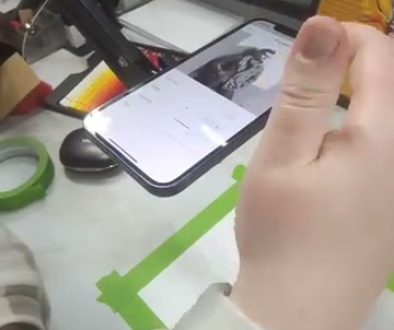
You mount your phone above your drawing surface (using a stand, tripod, or even a DIY setup), open the app, and look at your screen. What you see is a live camera feed of your paper with your reference image overlaid on top. You can see both your drawing surface and the reference at the same time.
The biggest difference is portability. Your entire setup fits in your pocket. I’ve used Da Vinci Eye on trains, in coffee shops, and in different rooms of my house without any hassle. There’s no projector to haul around and no special lighting requirements.
The overlay stays aligned with your paper even if you move slightly. Modern AR tracking is surprisingly stable, and you can adjust opacity, size, and position with simple gestures. It’s responsive in a way physical projectors just can’t match.
Accuracy Comparison: Projection vs AR Overlay
Here’s where things get interesting. Physical projectors can technically project very sharp images, but that sharpness depends on your focus adjustment, the distance from projector to surface, and keeping everything perfectly still.

Any vibration, like your hand bumping the table, can shift a physical projection. If you’re tracing and you accidentally nudge your setup, you’ll notice the misalignment immediately. Some artists tape down reference points, but it’s still a factor you have to manage.
Drawing projector apps handle accuracy differently. The AR overlay doesn’t physically touch your paper, so there’s nothing to bump or shift. The accuracy comes from how well the app tracks your surface and how clearly your phone’s camera can see your workspace.
In my experience, both methods get you accurate proportions. The real difference is in how forgiving they are. Apps let you check your work by toggling the overlay on and off instantly. With a physical projector, you’re either looking at the projection or you’re not,there’s no quick comparison mode.
Da Vinci Eye includes features like the Strobe tool that flashes the reference on and off, letting you compare your drawing to the reference in real time. That kind of instant feedback just isn’t possible with traditional projection.
Portability and Setup Time Face Off
Setting up a physical projector takes time. You need to position the projector, load your image, adjust the focus, dim the lights, and test the alignment. Plan on 10 to 15 minutes before you actually start drawing.

Packing it up is just as involved. If you’re someone who draws in different locations or likes to switch between projects quickly, that setup time adds up over weeks and months.
Drawing projector apps win on setup speed. Open the app, position your phone, and you’re ready to draw in under a minute. I’ve gone from idea to first pencil stroke faster with an app than I ever did with physical equipment.
The portability factor is huge if you travel. A phone mount weighs next to nothing and fits in any bag. Try bringing a traditional projector on a trip and you’ll immediately understand why artists are switching to digital solutions.
That said, if you have a permanent studio space and you draw at the same desk every day, setup time becomes less important. A physical projector that’s always ready to go can work just fine in that scenario.
Working With Different Image Sources
Physical projectors typically need your image in a specific format. Older models use transparencies, which means you’re printing or converting your reference images before you can use them. Newer digital projectors can work from USB drives or SD cards, but you’re still transferring files around.
Want to use a photo you just took on your phone? With a physical projector, you’ll need to get that image onto whatever media your projector accepts. It’s doable, but it’s extra steps between inspiration and actual drawing.
Apps have a big advantage here. Any image on your phone is immediately available. Photos from your camera roll, downloaded references, screenshots, even images from websites can be loaded in seconds. The friction between finding a reference and using it basically disappears.
Da Vinci Eye lets you import from multiple sources, adjust the cropping, and even work with images at different sizes without any extra equipment. That flexibility changes how you approach reference gathering.
The Camera Obscura Connection: Drawing Projection Through History
Before we had either modern projectors or smartphone apps, artists built camera obscuras. These were boxes or even entire rooms with a small hole that projected an inverted image of the outside world onto an interior surface.
The camera obscura worked on pure optics. Light traveling through a tiny aperture creates an upside-down image on the opposite wall. Artists would trace these projected images to capture accurate perspectives and proportions, especially for landscapes.
Building one yourself shows you the fundamentals of how projection works. You need a light-tight box, a pinhole or lens, and a surface to receive the image. Getting the image clear enough to trace takes experimentation with hole size, box dimensions, and distance adjustments.
The tracing itself is tricky with a basic camera obscura. You need a rigid surface behind your paper (plexiglass works well), and you have to work in near-total darkness to see the projected image clearly. It’s a hands-on history lesson, but not exactly practical for regular drawing sessions.
Modern drawing projectors are essentially refined camera obscuras with better optics and light sources. Drawing projector apps take the same concept but flip it, instead of projecting the world onto paper, they project a digital reference through AR onto your live workspace.
Common Mistakes When Choosing Between Projectors and Apps
The biggest mistake is buying a physical projector without testing your workspace first. If you don’t have room for the projector-to-surface distance the device needs, or if your space has too much ambient light, you’ll be frustrated before you even start drawing.
Another common error is expecting either tool to do the drawing for you. Both projectors and apps help with proportions and initial layout, but they don’t replace your observation skills or hand control. You still need to understand values, edges, and how to translate what you see into marks on paper.
Some artists dismiss drawing projector apps because they assume phone cameras aren’t accurate enough. Modern smartphone cameras are surprisingly good, and AR tracking has improved dramatically. Give the technology a fair shot before deciding it won’t work for you.
On the flip side, don’t assume physical projectors are automatically more “professional.” The tool that helps you learn and create better work is the right tool, regardless of whether it’s a hundred-year-old technique or a modern app.
Forgetting to secure your phone properly is a mistake I see beginners make with apps. A wobbly phone mount creates a wobbly overlay. Invest in a stable stand or mount, and your experience improves immediately.
Which Drawing Projector Approach Fits Your Drawing Style
If you work large, say canvas sizes over 24 by 36 inches, a physical projector might serve you better. Traditional projectors can cover bigger areas with consistent image quality, and you won’t be limited by your phone’s camera field of view.
If you move around, work in different locations, or like switching between multiple references quickly, a drawing projector app makes more sense. The portability and instant image switching are hard to beat.
For artists just starting out, apps have a lower barrier to entry. You already have a phone, and phone mounts are inexpensive. You can start practicing with projected references immediately without buying specialized equipment.
Experienced artists who already have dedicated studio spaces might appreciate physical projectors for their simplicity. There’s something to be said for a tool that does one thing consistently without needing software updates or battery charging.
Personally, I keep both options available. For detailed portrait work at my desk, I’ll use Da Vinci Eye because I can adjust opacity, use the Strobe feature to compare values, and work in normal lighting. For larger pieces where I need wall-sized projection, a traditional projector makes sense.
The real answer is that these aren’t competing tools, they’re complementary ones. Understanding what each approach does well helps you pick the right one for each specific project. Your drawing goals matter more than which technology sounds more impressive.
Start drawing with Da Vinci Eye