Da Vinci Eye: How AR Projection Changed Drawing in 2026
See Da Vinci Eye in action in the video below.
If you’ve ever tried to trace a reference photo using a lightbox or grid method, you know the frustration. The image shifts, your paper moves, and suddenly nothing lines up anymore. By 2026, augmented reality has completely changed how artists approach reference work, and Da Vinci Eye sits right at the center of that shift.
This app uses your phone’s camera to overlay reference images directly onto your drawing surface. You see both your paper and your reference at the same time, perfectly aligned, no matter how you move or adjust your setup. It’s become the go-to tool for artists who want accurate proportions without the hassle of traditional projection methods.
How AR Projection Actually Works in Da Vinci Eye
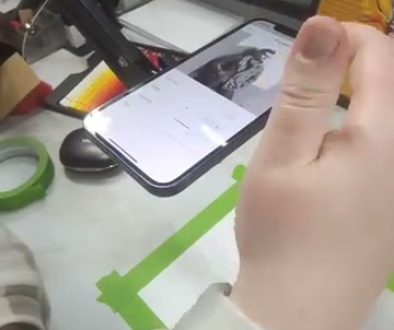
The core technology is simpler than it sounds. You load a reference photo into the app, point your phone’s camera at your drawing surface, and the app overlays the image onto what you see through your screen.

What makes this different from older methods is the AR tracking. The app uses an anchor point system that adjusts the overlay in real time. If your paper isn’t perfectly flat or your phone angle shifts slightly, the image compensates automatically.
This means you can work on textured surfaces, canvases, or even slightly curved paper without worrying about distortion. The reference stays locked to your drawing surface through software, not through mechanical positioning like a traditional projector would require.
One artist in the tutorial video even streams the app view to a TV screen. This lets her see a much larger workspace while still using her phone to track the drawing surface. It’s a setup that wouldn’t be possible with lightboxes or grid transfers.
Why Artists Switched From Lightboxes and Grids to AR
Lightboxes only work with thin paper and require you to work in specific positions. If you’re drawing on canvas, wood, or thick watercolor paper, you’re out of luck. Grids take forever to set up and measure, and one small miscalculation throws off your entire proportion structure.

Da Vinci Eye removes those limitations completely. You can trace onto any surface, at any angle, without tape or clips or careful positioning. The app handles all the alignment work that used to eat up your setup time.
The AR anchor system is the real breakthrough here. When you accidentally bump your phone or shift your paper (and you will), the overlay doesn’t lose its position. Traditional methods would force you to start over or spend minutes realigning everything.
Artists who work on murals or large canvases have especially benefited from this. You can scale your reference to fit huge surfaces and walk around while working, something that’s impossible with stationary projection equipment.
Features That Go Beyond Simple Tracing
The breakdown mode creates step-by-step stencils based on color values in your reference. This is incredibly helpful for watercolor and graphite work, where you build up layers gradually from light to dark.

Instead of trying to figure out which areas to start with, the app separates your reference into value stages. You work through each stencil layer, which teaches you to see value relationships more clearly over time.
The strobe tool flashes between your drawing and the reference image. This makes it easy to spot proportion errors or areas where your values don’t match. It’s like having a second pair of eyes that can instantly compare your work to the original.
There’s also a built-in recording feature that captures time-lapse videos of your process. You don’t need separate camera equipment or editing software to create content for social media. The app handles it while you draw.
What AR Can’t Do For You (And Why That Matters)
The app gives you accurate proportions and placement, but it doesn’t handle your materials for you. You still need to understand how graphite blends, how watercolor behaves on wet paper, or how to layer colored pencils for smooth transitions.

Those technical skills are what make a drawing look alive. Da Vinci Eye gets your foundation right so you can focus on the rendering work that actually develops your artistic voice.
In the tutorial video, the artist works through a detailed dog portrait. The app helps her place the eyes, nose, and mouth correctly, but the fur texture, the shine in the eyes, and the soft blending around the muzzle all come from her understanding of how to use her pencils.
This is why the tool works well for both beginners and experienced artists. Beginners get accurate structure to build on while they learn technique. Experienced artists save time on layout so they can spend more energy on the creative decisions that define their style.
Setting Up Your First AR Drawing Session
Start by choosing a reference photo with clear lighting and good contrast. The app works with any image, but high-quality references give you better results to learn from.
Position your phone so the camera has a clear view of your entire drawing surface. You don’t need a tripod, but some kind of stable holder helps. A stack of books or a propped-up case works fine.
Use the anchor point to lock the overlay to your paper. This is the step that makes everything else work smoothly. Take a few seconds to set it properly, and you won’t have to readjust later.
Adjust the opacity of the overlay to match your comfort level. If you’re just sketching proportions, you might want a lighter overlay. For detailed tracing, increase the opacity so you can see the reference more clearly against your paper.
Common Mistakes When Starting With AR Drawing
The biggest mistake is relying on the overlay so heavily that you never look at your actual paper. The point is to use the reference as a guide, not to ignore what’s happening with your materials.
Check your work frequently by turning off the overlay. This helps you see what your drawing actually looks like without the reference covering it. You’ll catch value issues and blending problems much earlier this way.
Another common issue is working too small. AR projection works at any scale, so there’s no reason to cramp your drawing into a tiny space. Give yourself room to work comfortably and add detail.
Don’t skip the anchor point setup. It feels like a small step, but it’s what keeps your overlay stable when you move around. Taking 30 seconds to set it properly saves you from constant readjustment later.
Finally, remember that the app shows you where things go, but you still control how they look. Use the reference for placement and proportion, then make artistic choices about style, detail level, and finishing techniques that match your creative goals.
Start drawing with Da Vinci Eye