Projector for Drawing: Digital vs. Physical Options Compared
See Da Vinci Eye in action in the video below.
You’re standing in an art supply store, staring at a bulky art projector, trying to decide if it’s worth hauling home. Or maybe you’ve been scrolling through countless projector options online, wondering which type actually works for your drawing setup. Choosing a projector for drawing isn’t as simple as it used to be.
Traditional physical projectors have been around for decades, but now there’s another option that fits in your pocket. Smartphone apps use augmented reality to overlay reference images directly onto your drawing surface through your phone’s camera. Both approaches help you nail proportions and transfer images, but they work in completely different ways.
Here’s how to figure out which one fits your creative process. Physical projectors and app-based projection offer different trade-offs, and the right choice depends on your space, workflow, and learning style.
How Physical Art Projectors Work
Physical art projectors are optical devices that shine light through a transparency or bounce an image off mirrors to project onto your canvas or paper. You load your reference image as a slide or place a photo under the projector lens, plug it in, and adjust the distance until the projected image fits your drawing surface.

These devices come in two main types. Overhead projectors use transparencies you create from your reference images. Opaque projectors reflect images from photos or book pages directly onto your surface without needing a transparency.
The setup requires a darkened room since ambient light washes out the projection. You’ll also need enough space to position the projector at the right distance from your drawing surface. For larger projections, you’ll need more room, which can be a challenge in smaller studios or apartments.
Physical projectors work great for murals and large canvas work where you need to scale up an image significantly. The projected light creates a clear outline you can trace directly onto your surface.
How Smartphone AR Projection Apps Work
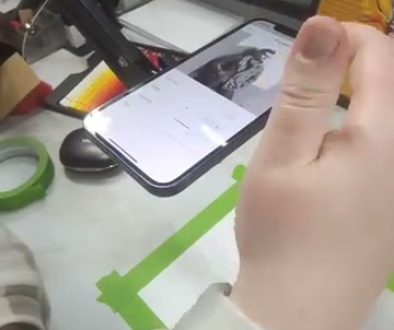
AR projection apps like Da Vinci Eye turn your smartphone into a drawing reference tool without needing external hardware or a dark room. You mount your phone on a stand above your drawing surface, load your reference image into the app, and look at your phone screen to see your reference overlaid on your paper through the camera feed.

The app uses your phone’s camera to create a live view where your reference image appears to float directly on your drawing surface. You can scale, rotate, and position the reference to match your composition. As you draw, you glance at your screen to check proportions and details.
This approach works in normal room lighting since you’re viewing everything through your phone screen. You’re not projecting light onto paper, you’re viewing a digital overlay. Your phone becomes a see-through window where you can compare your reference to your actual drawing in real time.
The setup takes about thirty seconds. Mount your phone, open the app, choose your reference image, and start drawing. No transparencies to create, no room to darken, no distance calculations.
Apps vs Physical Projectors Compared: Space and Portability
Physical projectors are stationary tools that require dedicated space. You need room for the projector itself, clearance for the light beam, and often a table or stand to hold everything at the right height. Moving a projector between locations means packing up a relatively bulky device plus its power cord.

If you draw at a kitchen table, pack up between sessions, or work in different locations, a physical projector becomes a hassle. You can’t easily take it to a park, a friend’s studio, or on vacation.
AR drawing apps fit in your pocket because they use the phone you already carry. Your entire setup is a phone and a small phone stand. You can draw at your desk, move to the dining table, work outside in natural light, or sketch at a coffee shop.
I’ve used Da Vinci Eye in a cramped apartment corner, on a picnic table outside, and at my parents’ house during visits. The portability means you can practice consistently no matter where you are.
Tracing Method and Drawing Experience
With a physical projector, you trace the projected light directly onto your surface. The image is right there on your paper, and you follow the outlines you see. This direct tracing feels straightforward, but you’re working in a darkened room, which can strain your eyes and makes it hard to see the colors you’re using.

You also can’t easily save your progress or adjust the reference mid-drawing without moving the projector. Once you’ve committed to a size and position, you’re locked in unless you want to restart your setup.
AR apps work differently. You look at your phone screen, see your reference overlaid on your drawing, and then look down at your paper to draw. This back-and-forth between screen and paper trains your eye to see and remember proportions rather than just mechanically tracing lines.
You’re learning as you draw because you’re constantly comparing what you see in the overlay to what your hand creates. It’s closer to drawing from observation than pure copying. You can zoom into details, adjust opacity, flip or rotate your reference, and even switch between multiple references while working on the same piece.
Reference Image Flexibility
Physical projectors require you to convert digital images into physical formats. For transparency projectors, you print your image onto special transparency film. For opaque projectors, you need a printed photo. This extra step adds time, especially if you work from multiple references or want to try different compositions.
Changing your reference mid-project means creating a new transparency or print, then realigning everything. It’s possible but annoying enough that most people just commit to their first choice.
Smartphone apps let you pull any image from your photo library instantly. Took a reference photo an hour ago? It’s ready to use. Found inspiration on your camera roll? Load it in seconds. Want to combine elements from multiple references? Switch between them as you work.
This flexibility changes how you approach projects. You can experiment with different compositions, test various crops, or reference multiple images for a single drawing without any extra prep work.
Learning and Skill Development
There’s something important to understand about using any projector for drawing. The tool transfers information from your reference to your surface, but what you do with that information is where the learning happens.
Physical projectors give you a direct outline to trace, which helps with placement but doesn’t necessarily build your observational skills. You’re following lines without actively analyzing why those lines fall where they do.
AR apps create a different relationship with your reference. Because you’re looking at a screen overlay and then drawing on paper, you’re constantly training your eye to see shapes, angles, and proportions. You notice how the curve of a cheek relates to the placement of an eye. You start recognizing patterns in how shadows fall.
This back-and-forth builds visual memory. After using Da Vinci Eye for a few weeks, I found myself more confident sketching without any reference at all because I’d developed a better understanding of how features relate to each other. The app helped me learn, not just replicate.
Common Mistakes When Choosing Your Projection Method
The biggest mistake is choosing based on what seems more “legitimate” rather than what actually fits your workflow. Neither method is better or worse for learning to draw. What matters is consistent practice with a tool that removes frustrating barriers.
Another common mistake is underestimating the setup hassle of physical projectors. That extra friction of darkening a room, creating transparencies, and finding space means you’ll practice less often. Tools that are annoying to set up stay in the closet.
Don’t overlook lighting requirements. Physical projectors need darkness, which limits when and where you can work. If you draw after work in a room with windows, you’ll spend time with blackout curtains or waiting for sunset. Apps work in any lighting, which means more drawing time.
Some artists also assume they need to trace perfectly or the tool isn’t working. Both physical projectors and apps are guides. Use them to understand proportions, then make artistic choices about style, shading, and details. The reference gets you started, but your technique and creativity complete the work.
Finally, don’t forget that the goal is building skills. Whichever tool you choose, pay attention to what you’re learning. Notice how features align, study value relationships, and analyze shapes. The tool that helps you notice more will help you grow faster as an artist.
Start drawing with Da Vinci Eye