AR Projector Technology: How Augmented Reality Changed Drawing
See Da Vinci Eye in action in the video below.
Remember when artists used overhead projectors to trace images onto canvas, squinting through dim light to see their reference materials? That world feels almost quaint now. The way we transfer reference images has completely transformed, and AR projector technology sits at the heart of this evolution. Instead of bulky equipment and complicated setups, today’s artists carry powerful projection tools in their pockets.
The shift from physical projectors to augmented reality apps has changed more than just convenience. It’s opened up new possibilities for learning proportions, understanding composition, and developing your artistic skills in ways that weren’t possible even a few years ago.
From Overhead Projectors to Pocket-Sized AR Tools
The classic overhead projector served artists well for decades. You’d print or draw your reference image, place it on the projector, and adjust the focus until the projection hit your canvas at the right size. It worked, but it came with real limitations.

You needed a dark room, which made seeing your actual drawing surface harder. The projector took up space and required a power outlet. Adjusting the size meant physically moving the projector closer or farther from your canvas, and getting the proportions exactly right often meant multiple attempts.
AR projector technology flipped this process completely. Your phone becomes both the reference holder and the projection device. You’re not projecting light onto a surface, you’re overlaying digital information directly through your screen, letting you see both your reference and your drawing surface at the same time.
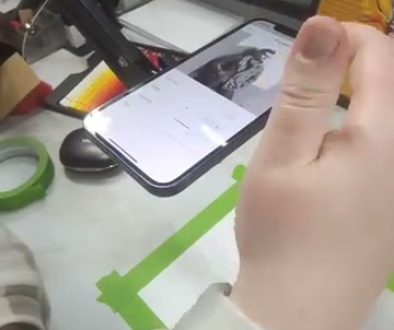
Da Vinci Eye uses this approach in what we call Classic Mode. Your phone’s camera shows your drawing surface, and the app layers your reference image transparently over that camera feed. Look at your phone screen, and you see exactly where each line should go relative to your paper.
How Modern AR Projection Actually Works for Drawing
The technology behind AR drawing assistance is simpler than you might think, but the results are impressive. Your phone’s camera captures real-time video of whatever surface you’re drawing on. The app then overlays your chosen reference image on top of that video feed with adjustable transparency.

You position your phone above your drawing surface using a stand, a tall glass, or even a spray can if that’s what you have handy. The key is stability. When you touch your screen to draw, you don’t want your phone shifting position.
Here’s where it gets interesting. You can move, resize, and rotate your reference image with simple finger gestures until it lines up perfectly with your paper. Once you lock it in place, the image stays positioned exactly where you set it, even when you zoom in to work on details or zoom out to see the whole composition.
The opacity slider lets you adjust how transparent your reference appears. Need to see your pencil marks more clearly? Dial down the opacity. Working on initial proportions? Crank it up so you can see the reference structure clearly.
AR Mode Takes It Even Further
Classic Mode works beautifully, but AR Mode pushes the technology another step forward. Instead of keeping your phone stationary above your work, AR Mode lets you move freely around your drawing surface.

The secret is the anchor. You create a small piece of paper with random squiggles and intersecting lines, almost like a personalized QR code. The app uses this anchor to track the position of your canvas in physical space.
Move your phone, tilt it, step back to see the whole composition, then lean in close for details. As long as your camera can see that anchor, your reference image stays locked in perfect alignment with your drawing. It’s the closest thing to having a hologram floating above your canvas.
This matters especially when you’re working on larger pieces or when you need to stand while drawing. You’re not hunched over a phone anymore. You can work at whatever angle feels natural and just glance at your phone to check your reference positioning.
Tools That Make AR Projection Work Better
The basic overlay is powerful on its own, but several features make AR projection even more useful for actual drawing work. The strobe feature slowly flashes your reference image on and off, letting you compare your drawing to the reference without constantly toggling between views.

This becomes incredibly helpful when you’re matching colors or checking values. You see your reference, then it fades and you see only your work, then the reference appears again. Your eye catches differences immediately that you might miss when constantly switching back and forth manually.
The breakdown tool analyzes your reference image by color value and separates it into layers. For experienced artists, this helps you see the notan, the underlying structure of light and dark that makes compositions work. For beginners, it turns complex images into manageable steps.
Focus control matters more than you’d think. Your phone’s camera wants to autofocus constantly, which makes your drawing surface shift in and out of clarity. Manual focus keeps everything sharp exactly where you need it.
Image filters let you convert your reference to grayscale, add posterization effects, or apply blur. Sometimes seeing your reference in black and white helps you understand the value structure better than working from full color.
Setting Up Your AR Projector Workspace
Getting your workspace right makes everything else easier. Your phone needs to stay stable, so invest a few minutes in creating a proper setup. A dedicated phone stand works best, but you can also use household items creatively.
If you’re using a glass or can to hold your phone, add loops of painter’s tape to the top and bottom. This keeps your phone from sliding when you touch the screen. Position the phone so it’s easy to glance at while you draw, whether you’re left or right handed.
Lighting matters differently with AR projection than with traditional methods. You don’t need darkness like you did with overhead projectors, but you do need even lighting on your drawing surface. Harsh shadows or bright spots can make it harder to see your pencil marks through the phone screen.
Start with your reference image sized slightly smaller than your paper. It’s easier to enlarge it precisely than to shrink something that’s too big. Use two fingers to resize and rotate until the proportions match what you want, then lock it in place.
Common Mistakes When Using AR Projection
The biggest mistake is forgetting to lock your image after positioning it. You zoom in to draw a detail, and suddenly your reference shifts because the lock wasn’t engaged. Always double-check that move mode is off before you start drawing.
Another common issue is setting the opacity too high. When your reference image is too opaque, you can’t see your pencil marks clearly. Start around 50% opacity and adjust from there based on what you’re drawing and the lighting conditions.
Don’t forget about the camera focus. If your drawing looks blurry through the phone screen, manually adjust the focus slider. Your phone’s autofocus is trying to help, but it doesn’t know you want to focus on the paper, not the reference image overlay.
People also tend to hunch over their phone screen instead of working at a comfortable drawing position. Position your phone where you can see it with a natural glance, not where you have to crane your neck. Your drawing posture matters for both comfort and quality.
Recording time-lapse videos eats battery life faster than you’d expect. If you’re planning a long drawing session and want to record it, start with a full battery or keep a charger nearby. There’s nothing worse than having your phone die halfway through capturing your process.
What This Technology Means for Learning
AR projector technology has democratized something that used to require expensive equipment or years of practice to develop naturally. Understanding proportions is one of the fundamental challenges in drawing, and being able to see accurate proportions overlaid on your work accelerates that learning curve significantly.
You’re not just copying lines mindlessly. You’re training your eye to see relationships between elements, understanding how far apart features sit, recognizing angles and curves in a more intuitive way. Each time you check your work against the reference, you’re building that visual library in your mind.
The technology also removes the intimidation factor from tackling complex subjects. Want to draw a portrait but worried about getting the proportions right? The AR overlay gives you confidence to try. Interested in architectural drawing but daunted by perspective? You can see exactly how those angles work.
This isn’t about replacing skill development. It’s about having a patient teacher available whenever you need it, showing you exactly how things should look without judgment. As your skills grow, you’ll find yourself relying on the overlay less and your own trained eye more.
Start drawing with Da Vinci Eye