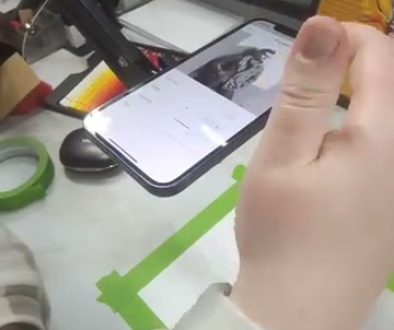
How Augmented Reality Is Changing the Way Artists Draw
See Da Vinci Eye in action in the video below.
If you’ve been drawing for a while, you’ve probably hit that moment where your reference photo is on your phone, your paper is on the desk, and you’re bouncing your eyes back and forth trying to get the proportions right. It’s exhausting, and honestly, it takes you out of the creative zone. Augmented reality is changing that entire experience by letting you see your reference image overlaid directly onto your drawing surface through your phone’s camera.
This isn’t some futuristic concept anymore. AR drawing tools are here now, and they’re giving artists a way to work that feels more natural and focused. Instead of breaking your concentration to measure and compare, you can keep your eyes on your work while the technology handles the alignment.
What Augmented Reality Actually Does for Drawing
Augmented reality for drawing works by using your phone’s camera to show you a live view of your paper or canvas with a reference image projected on top of it. You’re looking at your screen, but you’re seeing both your real workspace and the digital overlay at the same time.

This means you can position a portrait reference exactly where you want it on your paper, scale it to the right size, and then draw while seeing both the reference and your actual pencil or brush in real time. It’s like having tracing paper, but with total control over what you’re referencing and how it’s positioned.
The really useful part is that you’re still making every mark yourself. The AR overlay shows you where things go, but your hand, your tools, and your artistic choices are what create the actual drawing. You’re learning proportions and training your eye while you work, not just copying mindlessly.
How Artists Are Using AR to Learn Faster
One of the biggest struggles when you’re learning to draw is understanding proportions. You know the eyes should be halfway down the head, but when you’re staring at a blank page, that knowledge doesn’t always translate into accurate placement.

With augmented reality, you can overlay a reference portrait and actually see where the halfway point falls on your specific paper. You start to internalize those relationships because you’re seeing them in context, not just reading about them. After you’ve drawn a few dozen faces this way, your brain starts to recognize the patterns without the overlay.
The same goes for understanding light and shadow. When you can see the reference image overlaid on your drawing, you can study exactly where the highlights fall, how wide the shadow shapes are, and where the transitions happen. You’re not guessing or trying to remember what you saw two seconds ago when you looked at your phone.
Da Vinci Eye uses this AR approach to let you work with any reference image from your photo library. You can adjust the opacity of the overlay so you’re not just tracing blindly, but actually making decisions about values and edges as you go.
Setting Up Your Workspace for AR Drawing
Getting started with AR drawing is simpler than you might think. You need your phone, a way to position it so it’s looking down at your paper, and decent lighting so the camera can see your workspace clearly.

A phone stand or a stack of books works fine for positioning. You want your phone’s camera pointing straight down at your paper, or at whatever angle lets you see your full drawing area on the screen. Some artists use flexible tripods or desk lamps with phone mounts.
Lighting matters more than you might expect. If your workspace is too dim, the camera struggles to show you a clear view of your paper, and the overlay becomes hard to work with. Natural light from a window or a decent desk lamp makes a real difference.
Once your phone is positioned, you load your reference image, scale it to fit your paper size, and start working. You can adjust the reference size on the fly, which is incredibly helpful when you’re working on different sized surfaces or want to zoom in on specific details.
Working With Physical Media and AR Technology
One question that comes up a lot is whether AR drawing works with different art supplies. The short answer is yes, it works with whatever you normally use. Pencils, pens, watercolors, markers, all of it.

The camera shows you your actual hand and tools moving across the paper. If you’re painting with watercolors, you’ll see your brush, the water blooms, and the colors as they develop. The AR overlay sits on top of all of that, so you’re watching your real artwork take shape.
This is especially useful for watercolor because you can see exactly where to place your washes in relation to the reference. You’re not trying to remember where the shadow shapes were supposed to go while your paint is drying. You can see the reference and your wet paint at the same time.
When I’m working on a portrait, I typically start with the basic proportions using the AR overlay in Da Vinci Eye, then reduce the opacity as I move into details. By the end, I’m barely looking at the reference because I’ve built up enough information on the paper to finish from what I’ve learned.
Building Your Style While Using AR References
There’s this misconception that using reference overlays means you’ll just copy exactly what you see and never develop your own style. That’s not how it works in practice.
Your style comes from the thousands of small decisions you make while drawing. How hard you press your pencil, where you choose to add detail versus leaving areas loose, your color choices, your mark making. None of that is determined by the reference overlay.
The overlay helps you get the structure right so you can focus on those stylistic choices. Instead of spending mental energy on whether the nose is too long, you can spend that energy on how you want to render the shadows or what kind of line quality feels right.
As you practice with AR references, you start to notice your natural tendencies. Maybe you always simplify backgrounds, or you have a particular way of handling hair texture, or you prefer bold contrast over subtle gradations. Those tendencies are your style developing, and the AR tool is just keeping the proportions from getting in the way of that process.
Common Mistakes When Starting With AR Drawing
The biggest mistake I see people make is setting the overlay opacity too high and just tracing without thinking. If you can’t see your paper under the reference, you’re not learning anything. You want enough transparency that you’re making decisions, not just following lines robotically.
Another issue is trying to capture every single detail from the reference photo. Photos contain way more information than a drawing needs. Use the AR overlay to get the big shapes and proportions right, then step back from the reference and make artistic choices about what to include.
People also tend to keep the same reference size throughout the entire drawing. It’s fine to zoom in and out as you work. Maybe you need to see the whole face for placement, but then zoom into the eye area for details. The technology is flexible, so use it that way.
Don’t forget to take breaks from looking at your screen. Even though you’re drawing on real paper, you’re still looking at your phone the whole time. Every 20 minutes or so, look up and let your eyes adjust. Your neck will thank you too.
How AR Drawing Fits Into Your Practice Routine
AR drawing tools work best as part of a broader practice routine, not as your only way of working. I use Da Vinci Eye when I’m studying something specific, like portrait proportions or complex poses, but I also do regular observational drawing without any aids.
You might use AR for a finished piece where accuracy matters, then spend time doing gesture drawings or sketches from life without any technology involved. Both types of practice feed into each other. The proportional understanding you gain from AR work shows up in your freehand drawing, and the confidence from freehand work makes you less dependent on the overlay.
Some artists use AR drawing as a warm up exercise. Spend 15 minutes with a reference overlay working on facial features, then move into your main project with those observations fresh in your mind. The warm up trains your eye, and the main project lets you apply what you’ve learned.
The key is being intentional about why you’re using the tool. If you’re using it to avoid learning something, that’s a problem. If you’re using it to learn something faster and more accurately, that’s exactly what it’s designed for.
Start drawing with Da Vinci Eye