AR Art Projector: Da Vinci Eye vs Traditional Drawing Methods
See Da Vinci Eye in action in the video below.
When you’re trying to capture accurate proportions and placement in your drawings, you’ve got three main paths: freehand observation, traditional projectors, or an AR art projector like Da Vinci Eye. Each method has its place in an artist’s toolkit, and understanding when to use each one makes all the difference in your workflow.
I’ve tried all three approaches over the years, and they each solve different problems. The trick isn’t picking the “best” method, it’s knowing which tool fits your current project and skill level.
How AR Art Projection Actually Works
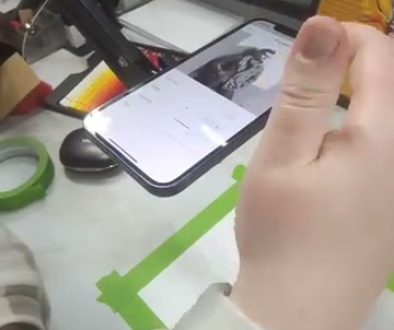
AR projection uses your phone or tablet camera to overlay a reference image directly onto your drawing surface in real time. You’re looking through your device’s screen and seeing both your paper and the transparent reference image at the same time, aligned exactly where you want it.

The Da Vinci Eye app takes this a step further with AR anchoring. Once you position your reference image and tap to lock it in place, it stays aligned even when your phone moves or your paper shifts slightly. This means you can set down your device, draw for a while, pick it back up, and everything’s still where you left it.
Unlike a physical projector that needs darkness and throws light onto your surface, AR projection works in normal room lighting. You’re not fighting shadows from your hand or dealing with washed-out projections in bright environments.
When Traditional Projectors Make Sense
Physical projectors have been around forever, and they’re still useful for specific situations. If you’re working on a large mural or canvas where you need to scale up an image significantly, a traditional projector can cover that area without requiring a massive device screen.

The downside is setup. You need the right distance between projector and surface, you need to dim the lights or work in darkness, and you’re constantly dealing with shadows whenever your hand or body blocks the projection. Moving your canvas even slightly means realigning everything.
Traditional projectors also limit your mobility. You’re stuck in one position because moving the projector changes the entire projection angle and scale. For quick studies or drawings where you might rotate your paper or work from different angles, this becomes frustrating fast.
The Freehand Observation Approach
Drawing purely from observation, whether from life or a separate reference image, builds your skills in ways that other methods don’t. You’re training your eye to measure proportions, identify relationships between shapes, and translate three-dimensional objects onto a flat surface.

But here’s the reality: freehand observation has a steep learning curve. Beginners often spend hours getting basic proportions right, and that frustration can kill the joy of creating before you ever get to the fun parts like shading and texture.
Even experienced artists don’t always use pure observation. When you’re working on a commission with a deadline or tackling a complex subject with tricky perspective, spending hours on the initial layout isn’t always practical. That’s where having other tools available changes your options.
Setting Up Your Drawing With Da Vinci Eye
Getting started with AR projection takes about a minute once you know the steps. First, you’ll need to place your paper on a stable surface and set up an anchor pattern, which can be as simple as placing some tape or objects near your paper that the app can recognize.

Open Da Vinci Eye and select your reference image. The app shows you a live camera view with your paper visible on screen. Position and scale your reference overlay until it matches where you want to draw, then tap to anchor it in place.
The anchor pattern lets the app track your paper’s position. As shown in the screenshots from the setup process, you’ll see “Anchor Not Detected” until the app recognizes enough visual information to lock onto. Once anchored, you can move your phone around and the overlay stays aligned with your paper.
From there, you’re drawing while looking at your screen. It feels a bit unusual at first if you’re used to looking directly at your paper, but most artists adapt within a few minutes. You can toggle the overlay on and off by tapping the visibility icon to check your progress, or use the strobe feature to flash between your reference and your actual drawing.
Choosing Your Method Based on Your Goal
If you’re learning proportions and construction, combining methods works better than picking just one. Use AR projection to lay down accurate initial proportions, then switch to freehand observation for rendering and details. This way you’re building your observational skills without getting stuck for hours on the foundation.
For finished artwork with tight deadlines, AR projection removes the guesswork from placement and scaling. You can focus your time and energy on the rendering, color accuracy, and details that make the piece yours. The screenshots show this in action, with the initial car drawing using the overlay for placement while the artist focuses on capturing the forms.
Traditional projectors still win for very large-scale work where you need wall-sized projections. But for anything that fits on standard drawing paper or canvas sizes up to a few feet, AR projection gives you more flexibility and better working conditions.
Pure freehand observation remains valuable for quick sketches, plein air work where you can’t use devices easily, and dedicated practice sessions where building your visual measurement skills is the whole point.
Combining Methods in Your Practice
The fastest-improving artists combine approaches instead of limiting themselves to one. They’ll use AR projection for complex subjects or commissioned work, practice pure observation for life drawing sessions, and occasionally pull out a projector for special large-scale pieces.
One effective practice routine: use Da Vinci Eye to set up accurate proportions, then put the phone down and complete the drawing through observation. This builds your rendering skills while removing the initial frustration of getting the placement wrong. As you do this repeatedly, you start internalizing those proportional relationships.
You can also use AR projection as a checking tool. Draw something freehand, then overlay the reference to see where your proportions drifted. This immediate feedback shows you exactly where your eye needs more training, which is harder to identify when you’re just comparing a reference photo sitting next to your drawing.
Common Setup Mistakes to Avoid
The biggest issue new users run into is not setting up a clear anchor pattern. If your drawing surface is blank white paper on a blank white desk, the app has nothing to track. Add some visual markers around your paper, like strips of colored tape or small objects at the corners.
Lighting matters more than you might think. While AR projection works in normal light unlike traditional projectors, extremely bright overhead lights or direct sunlight can wash out your screen and make it hard to see the overlay clearly. Moderate, even lighting works best.
Don’t try to anchor while moving. Set up your paper, position your reference, and hold your phone steady for a second while the app locks onto the anchor pattern. Moving around while the app is trying to establish the anchor just makes the process take longer.
Remember that you’re drawing while looking at your screen, not directly at your paper. This takes some adjustment, but it’s not harder, just different. Give yourself a few practice sketches to get comfortable with the hand-eye coordination before diving into a detailed piece.
Start drawing with Da Vinci Eye