Best Tracing App for Drawing: Compare Top Options in 2026
Tracing App for Drawing: Compare the Best Options for Artists in 2026
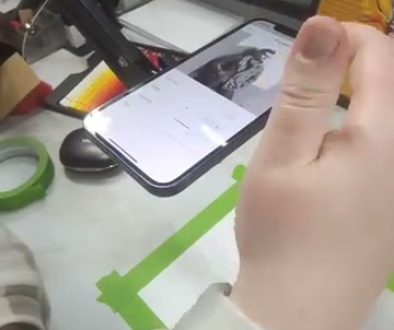
See Da Vinci Eye in action in the video below.
If you’ve ever stared at a reference photo and wondered why your drawing looks nothing like it, you’re not alone. Getting proportions right is one of the hardest parts of learning to draw, and it’s where most beginners give up.
A good tracing app for drawing can change that. These tools help you see exactly where lines should go, so you can focus on developing your actual skills instead of erasing the same eye placement for the fifth time.
What Is a Tracing App and How Does It Work?
A tracing app uses your phone or tablet’s camera to overlay a reference image onto your drawing surface. You look through your screen and see both the reference and your paper at the same time, like a digital version of the old lightbox technique.
Artists have used tracing tools for centuries. The camera obscura dates back to the Renaissance, and the camera lucida helped artists in the 1800s capture accurate proportions. Modern tracing apps are just the latest evolution of these tried and true methods.
The basic idea is simple: instead of constantly looking back and forth between your reference and your paper, you see them together. This lets you place lines with confidence and spend your mental energy on the parts of drawing that actually require creativity and skill.
What to Look for in a Tracing App for Drawing
Not all tracing apps are created equal. Here’s what separates the useful ones from the frustrating ones.
Image Stability and Tracking
The most important feature in any tracing app is whether the overlay stays put while you draw. Some apps drift or jitter when you move your hand near the phone, which defeats the entire purpose.
Look for apps that use augmented reality anchoring. This technology locks the image in place relative to your drawing surface, so even if your phone shifts slightly, everything stays aligned. Without this, you’ll spend more time repositioning than drawing.
Opacity and Visibility Controls
You need to be able to adjust how transparent the overlay is. Too opaque and you can’t see your own lines. Too transparent and the reference disappears.
The best tracing apps let you toggle the overlay on and off quickly, or even set up a strobe feature that flashes between your reference and your drawing surface. This makes it easy to check your progress without the overlay getting in the way.
Image Manipulation Tools
Can you resize, rotate, and reposition your reference easily? You’ll need to do this constantly as you set up each drawing. Apps that make this clunky will slow you down every single session.
Some apps also include filters that can convert your reference to grayscale or posterize it into simpler value shapes. These features help you understand the structure of what you’re drawing, not just trace the outlines.
Surface Flexibility
Paper is the obvious choice, but what about canvas, wood, fabric, or even cookies? A versatile tracing app works on any surface you can point your camera at. This opens up possibilities for murals, decorative painting, and craft projects beyond traditional drawing.
Comparing Popular Tracing App Options
Let’s look at the main types of tracing apps available and what each does well.
Basic Camera Overlay Apps
The simplest tracing apps just layer your reference photo over your camera feed. They’re straightforward to use, but they often lack stability features. Every time you bump your phone or shift your paper, you’ll need to realign everything.
These work fine for quick sketches or simple projects where precision isn’t critical. But for detailed work or longer drawing sessions, the constant repositioning gets old fast.
AR-Enabled Tracing Apps
Apps that use augmented reality technology represent the next level. They detect your drawing surface and lock the reference image in place relative to it. Move your phone, and the overlay adjusts automatically to stay aligned.
This is where the real time savings happen. You can zoom in to work on details, zoom out to check the overall composition, and never lose your place. For artists working on realistic portraits or complex subjects, this stability is essential.
Projector-Style Apps
Some apps are designed specifically for large scale work, projecting your reference onto walls or big canvases. These typically require a second device and more setup time, but they’re the only practical option for murals or wall paintings.
If you’re painting a mural on your garage or creating a large canvas piece, look for apps that support multi-device setups where one device acts as the projector and another as your viewing screen.
How Da Vinci Eye Helps Artists at Every Level
I’ve tried a lot of tracing apps, and Da Vinci Eye is the one that stays on my phone. Here’s why it works so well for the way I actually draw.
The AR anchoring is solid. Once I lock my reference in place, it genuinely stays there. I can zoom in to work on an eye, zoom out to check the overall face shape, and the proportions stay consistent. No more discovering halfway through a portrait that everything has drifted two inches to the left.
The app has a Classic Mode that works like a traditional lightbox setup, plus AR Mode for when you need that extra stability. I use Classic Mode for quick sketches and AR Mode for anything detailed or time-intensive.
One feature I didn’t expect to use so much is the Breakdown tool. It separates your reference into value layers, basically turning any photo into a paint-by-numbers guide. For beginners, this makes complex images approachable. For more experienced artists, it’s a quick way to analyze the notan structure before starting.
The Strobe feature is also genuinely useful. It flashes between your reference and a clear view of your drawing, so you can compare them without the overlay obscuring your work. I use this constantly to check my progress.
Da Vinci Eye works on paper, canvas, wood, fabric, and basically anything else you can point a camera at. I’ve used it for traditional drawings, watercolor paintings, and even decorating cookies for a birthday party. The flexibility means I reach for the same app regardless of what I’m creating.
Practical Tips for Getting the Most from Any Tracing App
Whatever app you choose, these tips will help you use it more effectively.
Set Up Your Phone Properly
Stability matters on both ends. Your phone needs to be held steady above your drawing surface, and your paper shouldn’t slide around either.
A phone stand designed for drawing works best, but a tall glass or spray can works in a pinch. Add a loop of painter’s tape to the top to keep your phone from sliding off. Make sure your drawing surface is secured too, especially if you’re working on a slick table.
Adjust Lighting for Your Screen
Bright overhead lights can wash out your phone screen, making it hard to see the overlay. Try positioning your workspace so light hits your paper but not your screen directly. Sometimes a slight angle adjustment makes a huge difference in visibility.
Don’t Trace Every Line
Use the overlay to establish key proportions and placement, then turn it off and draw. Tracing every single contour teaches you less than using the tool strategically.
For portraits, I’ll trace the general head shape, eye line, and nose placement. Then I turn off the overlay and draw the actual features freehand, using what I’ve learned about where things go.
Practice Looking at Your Paper, Not the Screen
It’s tempting to stare at your phone while drawing, but this disconnects your hand from your eye. Train yourself to glance at the screen for reference, then look at your paper while you make the marks. This builds the hand-eye coordination you need for drawing without assistance.
Use Filters to Simplify Complex References
If your reference photo has too much detail, use your app’s filters to simplify it. Grayscale removes the distraction of color. Posterization groups values into distinct zones. These simplified versions are often easier to trace accurately than the full-detail original.
Start with Subjects You Actually Want to Draw
Motivation matters more than perfect technique when you’re learning. Choose references that excite you, whether that’s anime characters, pet portraits, or landscapes. You’ll practice more when you’re drawing things you care about, and more practice means faster improvement.
A tracing app removes one of the biggest barriers to finishing artwork: the frustration of getting proportions wrong over and over. With that barrier gone, you can focus on developing the skills that make your art yours, like shading, texture, color mixing, and personal style.
The best tracing app is the one you’ll actually use consistently. Try a few options, find what fits your workflow, and then draw something every day. That’s how you get better.
Start drawing with Da Vinci Eye