If Mural Maker is acting strangely, try this on both devices
If you are experiencing weird bugs, connection issues, or messages that do not seem right, please try restarting both of your devices using the steps below.
This fixes most strange connection problems.
How to hard restart your iPhone or iPad:
- Quickly press and release the Volume Up button.
- Quickly press and release the Volume Down button.
- Hold down the Power button for about 15 seconds, until the Apple logo appears.
- Repeat this on the second device.
- Open Mural Maker again and try connecting.
Why does this work?
Mural Maker uses Apple’s built-in device-to-device connection system to stream quickly between your iPhone and iPad. It is similar to the system Apple uses for things like AirDrop, but we use it in a very specific way for live streaming inside the app.
Because this connection system is managed by Apple, we cannot fully reset it from inside Mural Maker. If something gets stuck in Apple’s connection cache, the app may show strange behavior, such as:
“You are in Mural Maker 1.0 mode” even though both on 2.0 Mode
The devices not seeing each other
The app refusing to connect or taking a long time to transfer an image
One device connecting but the other not responding correctly
A hard restart clears out that stuck Apple connection state. Unfortunately, this is not something we can force from inside the app, but restarting both devices this way usually fixes the issue.
Please try this first if anything about the connection feels weird. It works almost every time.
Q: Do I need two subscriptions to use this app?
A: No you only need one subscription. When setting up your second device press the “Restore Purchase” button and the device will be given full access to Mural Maker.
Q: What if I am using a friend’s device that does not have the Pro subscription?
If you are using someone else’s device, you don’t need to have the Mural Maker Pro on both devices. Press the red “X” in the corner of the screen when prompted to upgrade to Pro. When the two devices connect to each other, the device with the Pro subscription will unlock the Pro features for the project on the device that does not have the Pro subscription.
Q: The stream is very delayed, how do I fix this?
A: The camera stream should have very little noticeable delay, and there is a special way to setup the app for a super fast connection.
For the optimal setup go to your phone’s control center by following these instructions:
- For devices with a home button: you need to swipe up from the bottom of the screen
- For devices without a home button: swipe down from the top right corner of the screen
If you are having trouble finding the control center check out these instructions from Apple:
https://support.apple.com/en-us/HT202769
Then press on the wifi button as shown below. You want it to be white and not blue.
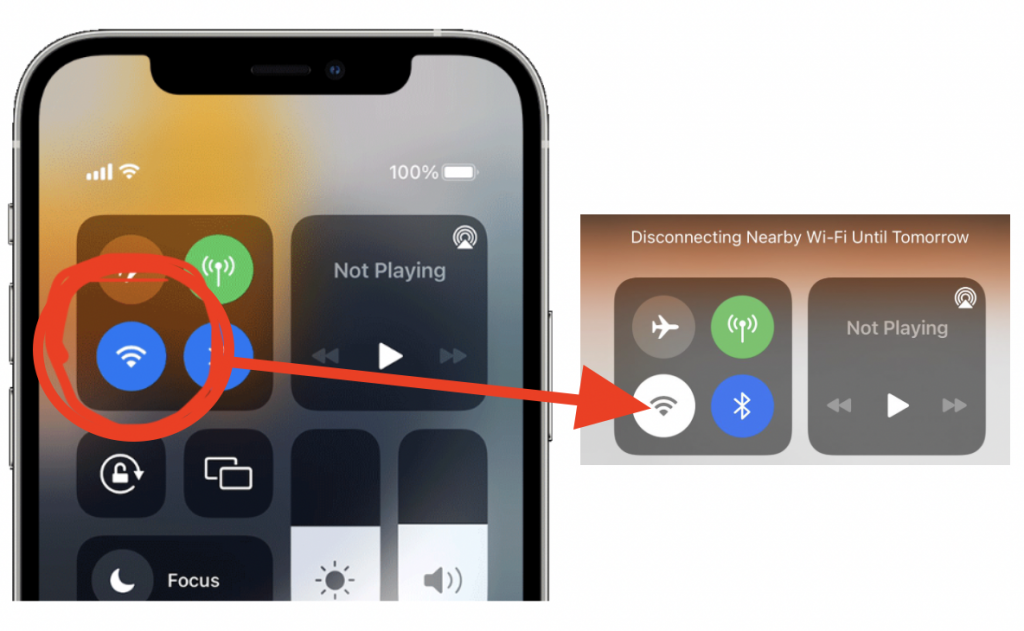
This disconnects you from your wifi network but does not turn your wifi off. As a result the two devices will connect directly with each other. Once both wifi buttons are white you can go back to Mural Maker and get to drawing!
****Do not turn off your wifi by going to your phone’s settings, only use the control center***
This will turn off your wifi completely and the app will not work.
Why does this work? I know the above sounds counter intuitive but... for the fastest connection, the app works best when not connected to your local wifi network!
The reason is that a wifi router acts as a middleman between your 2 devices and drastically slows things down.
Not good: iPhone -> Router -> iPad
When your devices are both disconnected from wifi they will create their own network directly with each other instead of trying to go to your router first.
Great: Phone -> iPad
If you are still having connection issues then please reach out to us using the contact form at the bottom of this screen. We usually respond super fast!
Q: My devices will not connect
Please make sure that both devices are running on the same version. You can press the three lines in the top left corner of the main screen and then if you look at the bottom of the menu it should show a version number. Both should match.
If both versions match please check and try the following:
1. If the app is still not connecting and you have the wifi buttons white like in the instructional video try instead turning on the wifi fully. The wifi buttons when they are blue should allow you to connect, but it may be a slower connection.
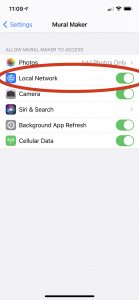
2. Make sure the app has access to your local network on both devices. To do this go to your phone’s Settings > Scroll down to Mural Maker > Turn on Local Network
3. If the app is still not connecting try uninstalling and re-installing the app on both devices. This will ensure that they are both on the same version. To restore your purchase press “Restore Purchase” when the app asks if you would like to upgrade.
4. If the app is still not connecting make sure you are not using a PNG, try using a JPEG. Sometimes the file format can block the connection.
5. Try preparing the drawing device first and then preparing the camera device.
6. If the app is still not connecting try hard restarting both of the devices. This is different than just turning them off and on again and almost always fixes one off connection issues. You may need to do this if the phone was recently updated to a new version of iOS. To do this:
- Tap quickly the volume up button and ,
- Then tap quickly the volume down button,
- Then hold down the power button on the device for about 15 seconds until the Apple logo appears.
Q: How do I resize or move my image?
A: For Mural Maker 1.0 Press the “Move” button in the bottom left corner of the screen
A: For Mural Maker 2.0 Press Tools > Position > And then Unlock on the camera device.
Q: Should I use Mural Maker or Should I use Da Vinci Eye?
A: The answer to this question is pretty simple.
- Am I planning on using a pencil?
- Am I drawing on a flat horizontal surface?
- Can I see my painting as a whole without taking several steps back?
If the answer is yes to any
Mural Maker is specifically meant for very large pieces, usually for more advanced artists, and in situations where you can’t have a TV or Monitor in front of you, or you are working outdoors.
In general the idea behind Mural Maker is a little bit different than Da Vinci Eye. Da Vinci Eye lets you draw super fine details while Mural Maker serves as a second set of eyes for you. For Da Vinci Eye, a super high resolution is necessary, for Mural maker a super high resolution is not needed. We trade the resolution for the ability to capture a wider view.
Mural maker is great transferring outlines to large surfaces, and its great for comparing color values, but it is not meant for ultra fine details.
If you think about it… if you are drawing a picture of a face on an 8.5 x 11 piece of paper, a pencil stroke is pretty big relative to the size of the whole drawing. If you wanted to draw someone’s eye you need to get in there and see the fine details because the person’s eye is only an inch big at most.
If you are making a mural sized painting, a pencil mark will not be seen from someone looking at it from 6 feet away, it is an insignificant mark.
For a mural sized painting of a person, an eye, is going to be 1 foot wide instead of an inch. instead of using a pencil to mark out where the paint should go you would use a piece of charcoal. Standing 6 ft away from your painting you would still be able to see the charcoal mark you won’t be able to see a pencil mark.
Along those lines, being able to see your painting where it is meant to be viewed, for example with these pieces roughly 6 to 10 feet away, while you are painting it is huge. You can be in two places at once.